
 Rocket - Think it. Type it. Launch it.
 Mini tools
UiPath / prodev-lab
README
Company Agent with UiPath - Prerequisites and Setup
This repository contains a sample implementation of a Company Agent with UiPath, demonstrating how to build enterprise-grounded AI agents that can access company policies, handle procurement requests, and manage HR tasks.
Before getting started, check the PRERESUISITES.md.
Getting Started
In case of utf-8 error:
Get-Content .env | Set-Content -Encoding utf8 .env.fixed
Remove-Item .env
Rename-Item .env.fixed .env
:warning: Go through thesese seteps before before the lab if you plan to follow along using the jupyter notebook on your own device.
-
Clone the repository:
git clone <repository-url> cd prodev-lab -
Run prerequisites checker (optional but recommended):
Before getting started, you can run the prerequisites checker script to verify all required software is installed. These scripts will check for:
UV Package Manager,git,Node.js (v14.0+),npm,Jupyter,Cursor.# Windows .\resources\prerequisites\check-prerequisites.ps1 # macOS/Linux chmod +x ./resources/prerequisites/check-prerequisites.sh ./resources/prerequisites/check-prerequisites.shFollow the instructions and install any missing software.
-
Set up the virtual environment:
This will initialize you virtual environment and will add the jupyter requirements.
There are multiple ways of setting up the jupyter kernel. If you are using this method, make sure you restartcursorafter creating the jupyter kernel.!py -m venv .venv !.venv\Scripts\pip install ipykernel jupyter !.venv\Scripts\python -m ipykernel install --user --name=jupyter-uv-env --display-name "WellsFargoLab" -
Environment Variables (
.envfile - optiona, you will create it in thehello-world.ipynbif needed):
Create a.envfile in the project root with:echo " UIPATH_FOLDER_PATH=Payments # or your specific folder " >> .env -
Run the Jupyter Notebook With Cursor:
cursor .First open the
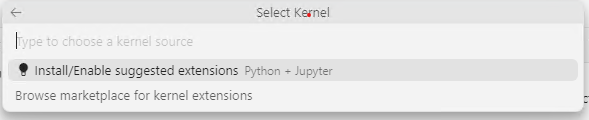
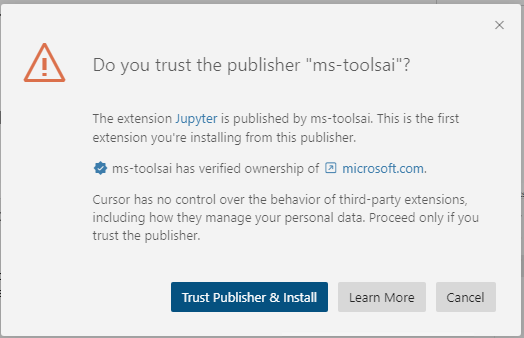
hello-world.ipynbfile.Install the recommended
Python+Jupyterextensions

-
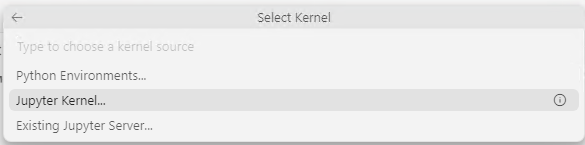
Select the kernel:
- In Jupyter, select Kernel > Change Kernel
- Choose the Jupyter kernel you created


Support
For issues and questions:
- UiPath Documentation: https://docs.uipath.com/
- UiPath Community Forum: https://forum.uipath.com/
- GitHub Issues: [Create an issue in this repository]
License
This is a sample project for educational purposes. Please refer to your organization's licensing agreements for UiPath and AI model usage.





