

 Mini tools
PostgreSQL for Visual Studio Code
PostgreSQL extension for VS Code
README
PostgreSQL for Visual Studio Code
PostgreSQL for Visual Studio Code is the essential extension for working with PostgreSQL databases - locally or in the cloud. Connect, query, build, and chat with your databases with ease, including seamless Entra authentication for Azure Database for PostgreSQL.
To learn more about the PostgreSQL extension and how it can simplify building
applications on PostgreSQL, visit our official MSFT Learn Documentation.
Supported Operating Systems
The extension is supported on the following operating systems:
- Windows: x64 and ARM64 (ARM64 requires Windows 11)
- Linux: x64 and ARM64 (requires glibc 2.35+)
- macOS: macOS 13+
About This Repository
This repository does not contain the source code for the PostgreSQL extension, which is not open source. Instead, this repository serves as a hub for issue tracking, documentation, and community feedback.
Features
Below are some of the key features of the PostgreSQL extension:
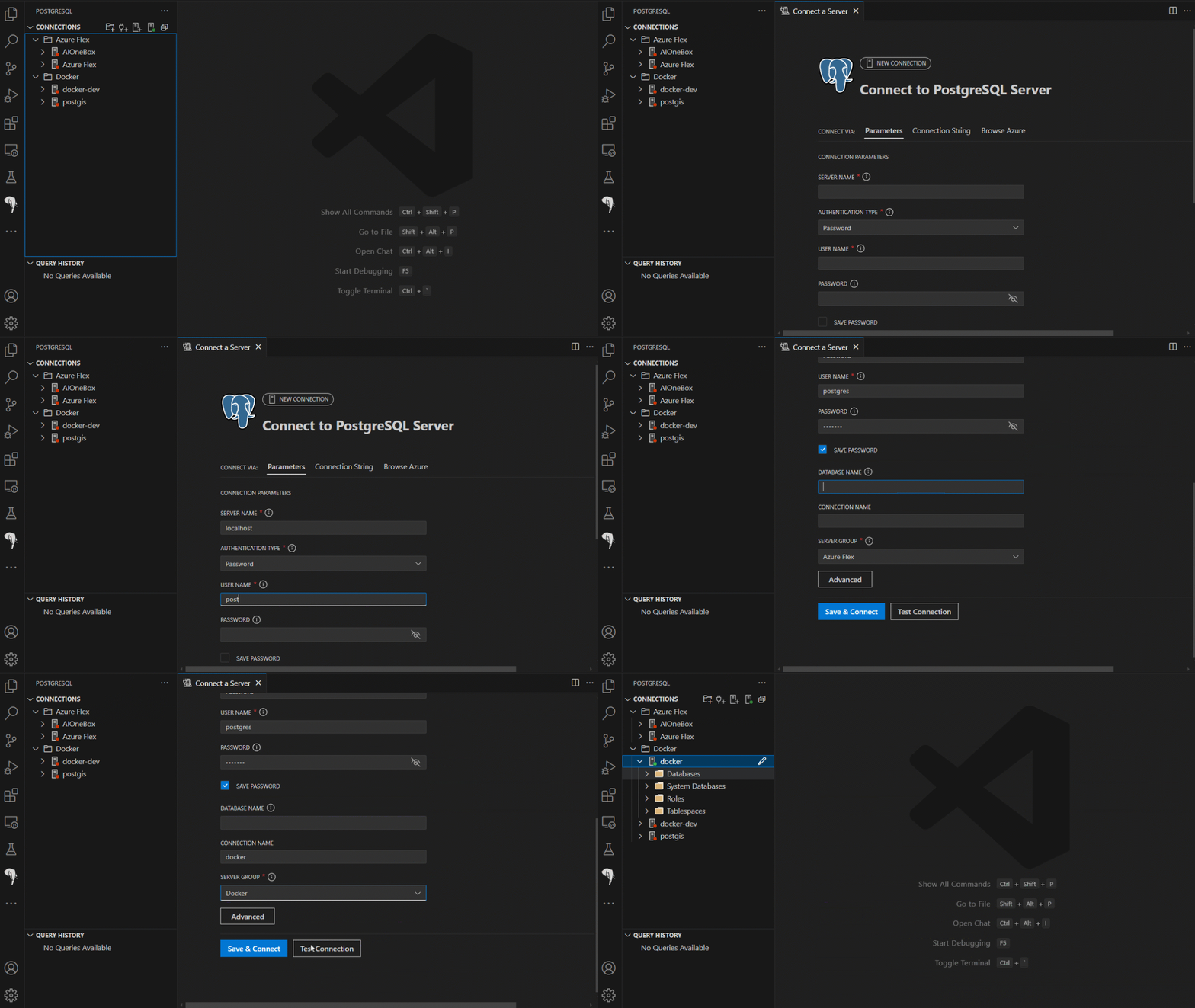
Connect to PostgreSQL
Connect to any PostgreSQL database.
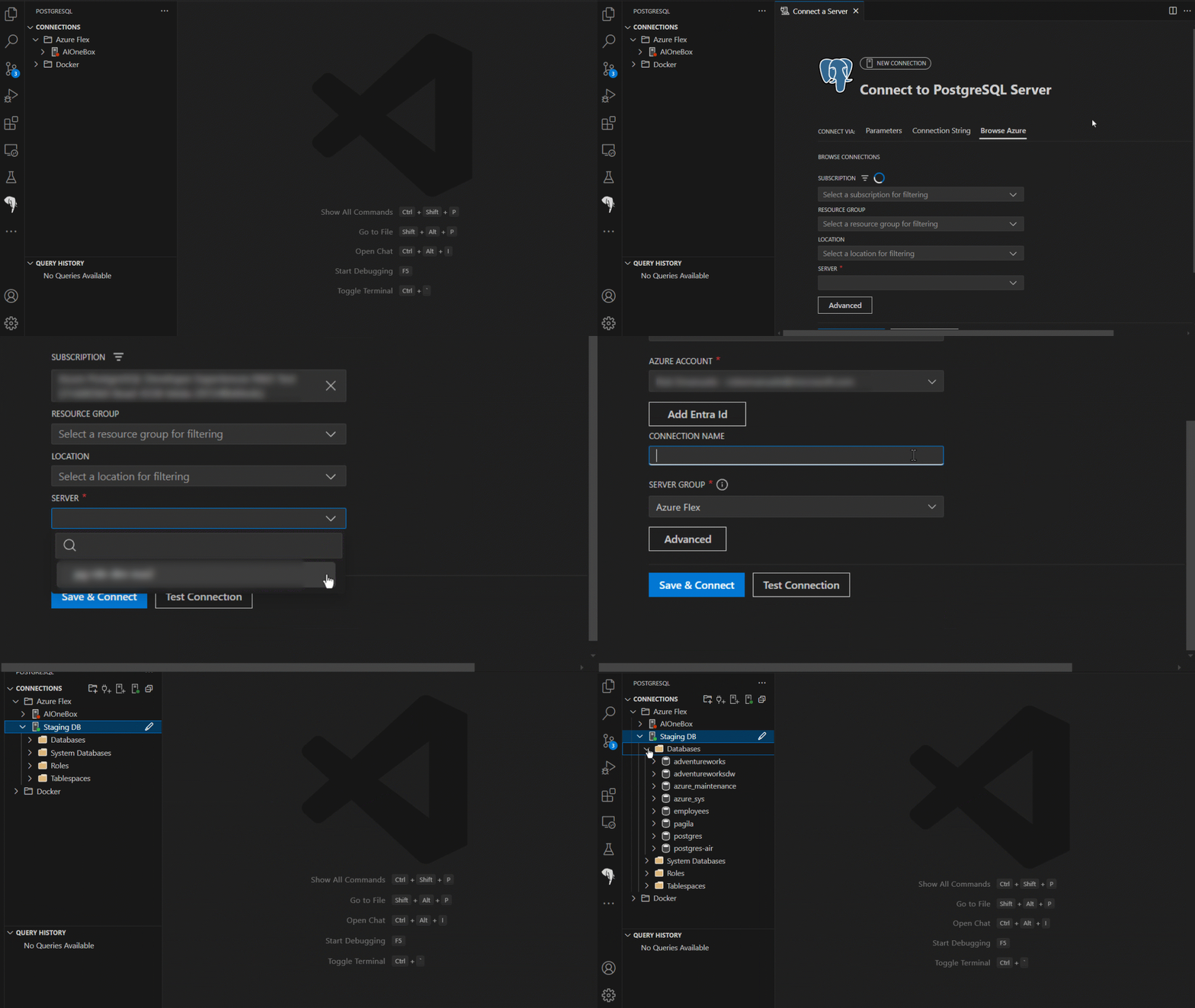
Browse Azure to easily find and connect to your Azure Database for PostgreSQL servers with either password or Entra authentication.
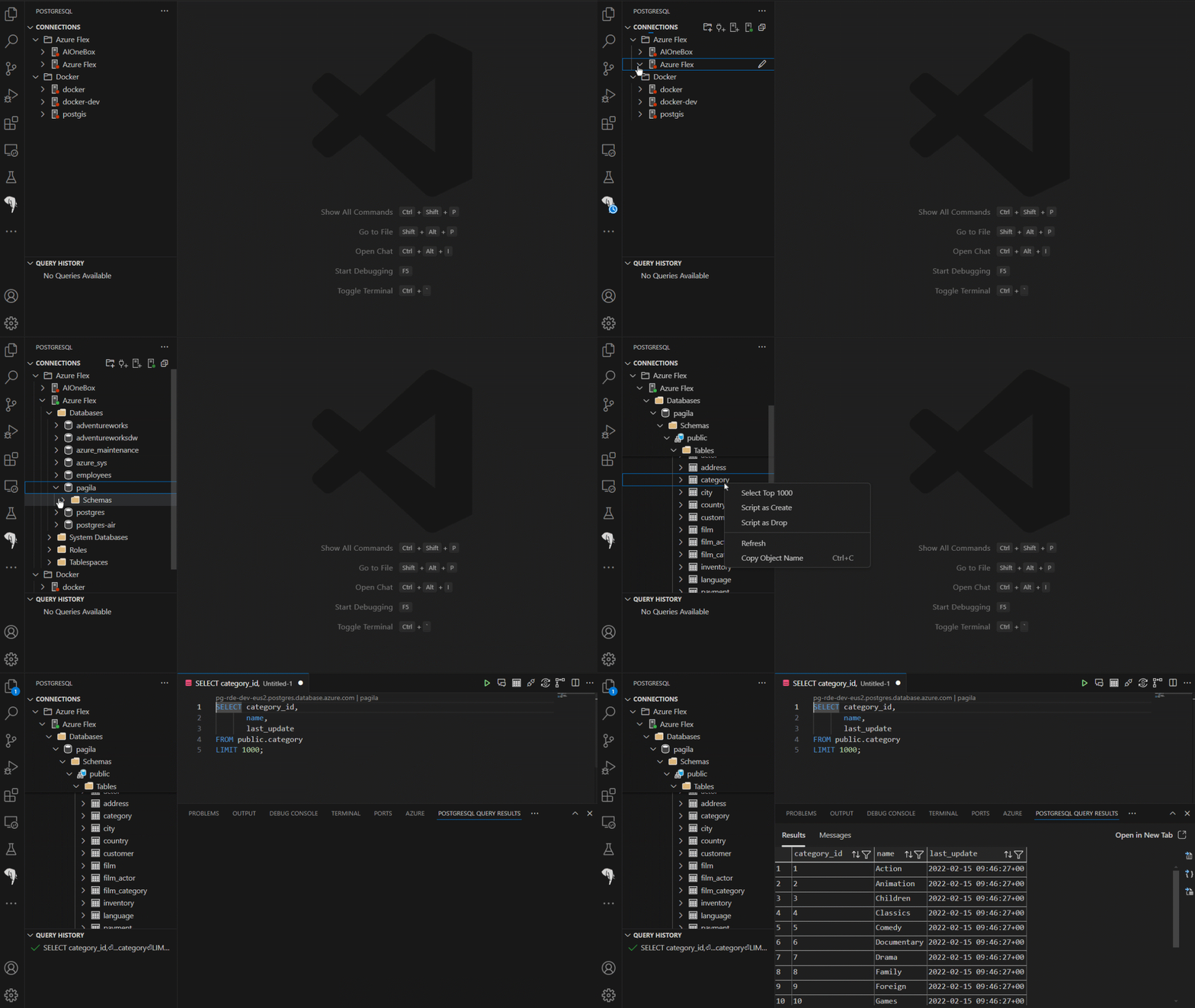
Explore your database
Easily explore your database objects, including tables, views, functions, and more.
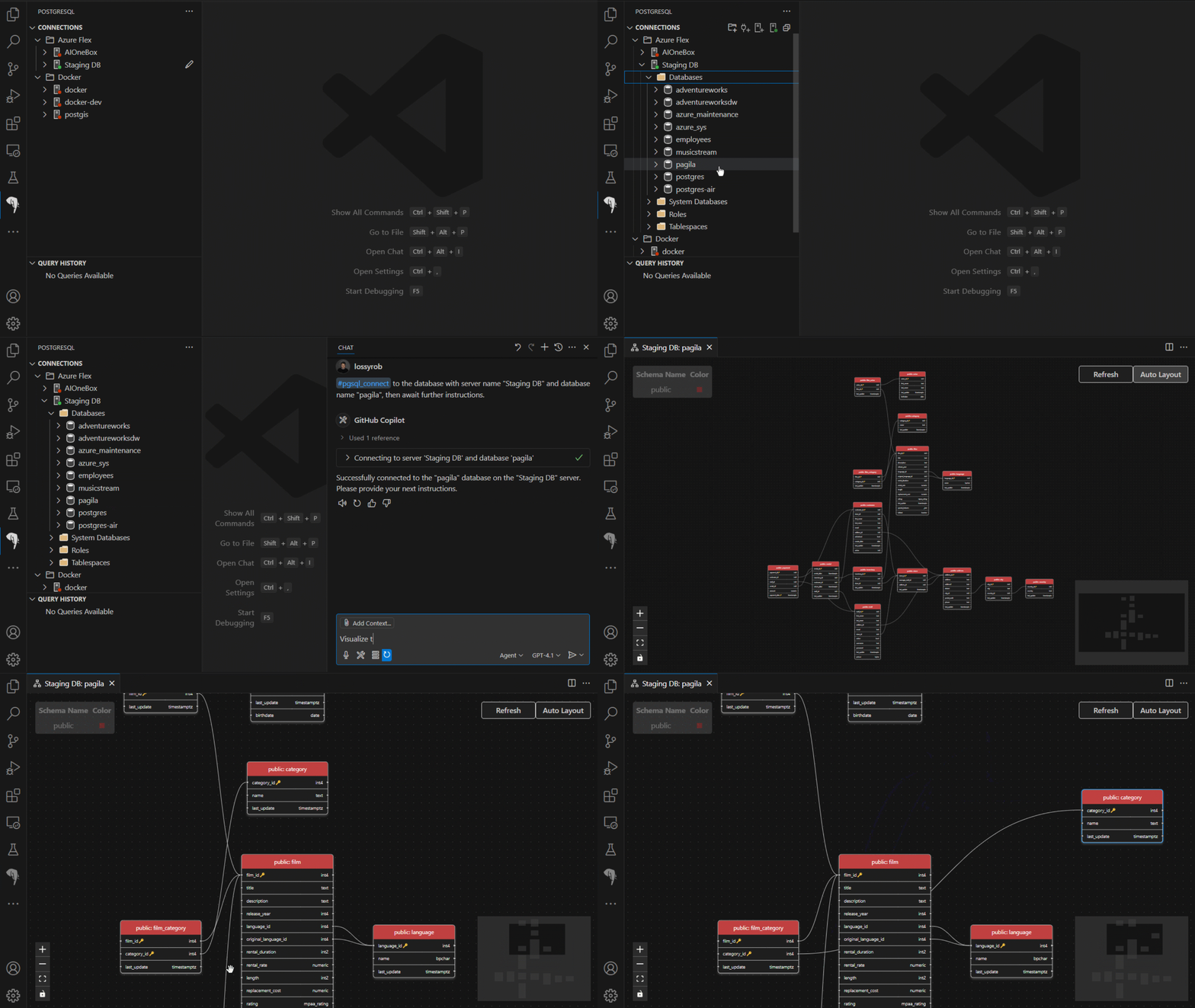
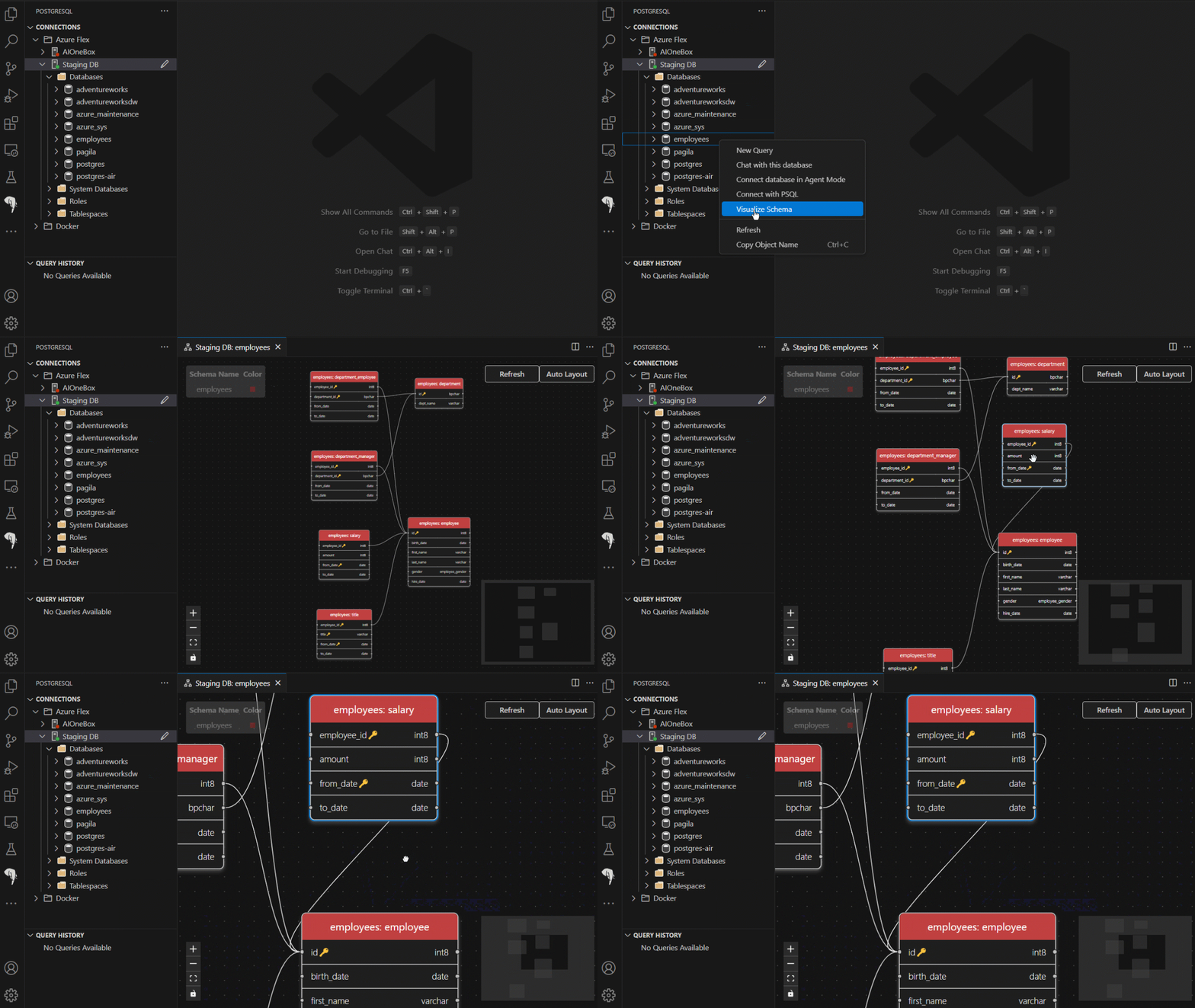
Schema Visualization
Visualize your database schemas quickly in VS Code.
Query Plan Visualization
Explore PostgreSQL EXPLAIN output in four synchronized views: an interactive node graph showing operator relationships, an icicle chart for identifying hotspots, a sortable table for comparing nodes, and a raw source view with Monaco Editor support. Color-coded severity groups highlight performance bottlenecks, and GitHub Copilot integration provides AI-assisted analysis and optimization guidance. Launch the visualizer from the query editor toolbar, the Query Results panel, or the Command Palette.
Object Explorer Search
Search for database objects by name across connections, databases, and schemas — without manually expanding the Object Explorer tree. Filter by object type (tables, views, functions, sequences, and more) and schema, then click any result to navigate directly to it in the tree. Launch search from the Object Explorer toolbar or by right-clicking any server, database, or schema node.
Apache AGE Graph Visualization
Run Apache AGE Cypher queries and explore the results as an interactive node-edge graph. The extension automatically detects graph query results and renders them in a visual explorer with per-node callouts, zoom and pan controls, export support, and theme-aware styling.
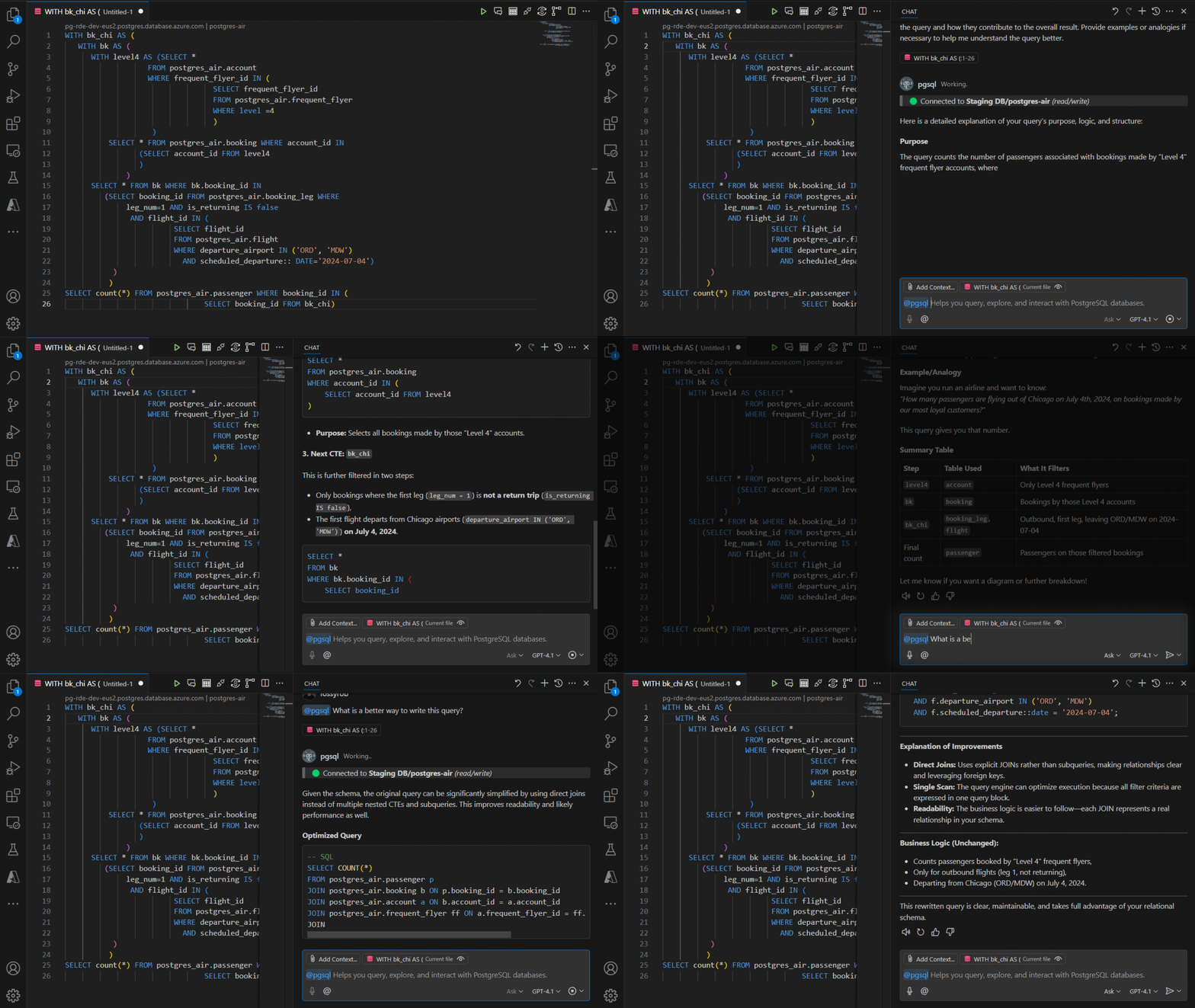
Copilot @pgsql agent
Chat with your database using the @pgsql agent in Copilot 'Ask' mode. Requires GitHub Copilot.
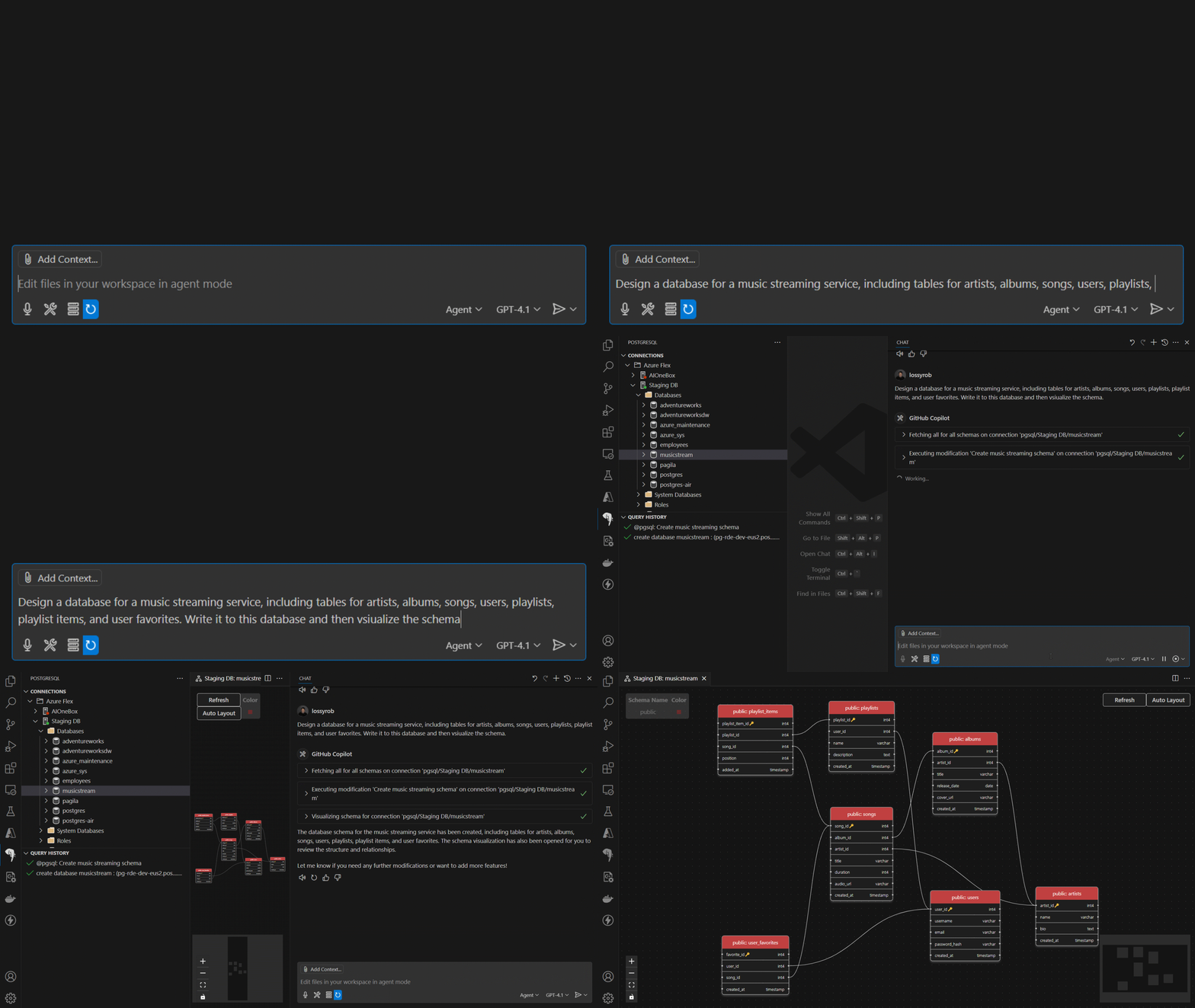
Agent Mode Tools
Supercharge your workflow with GitHub Copilot Agent Mode tools, which allows the agents to run SQL queries, create tables, design schemas, import CSV files, and more.
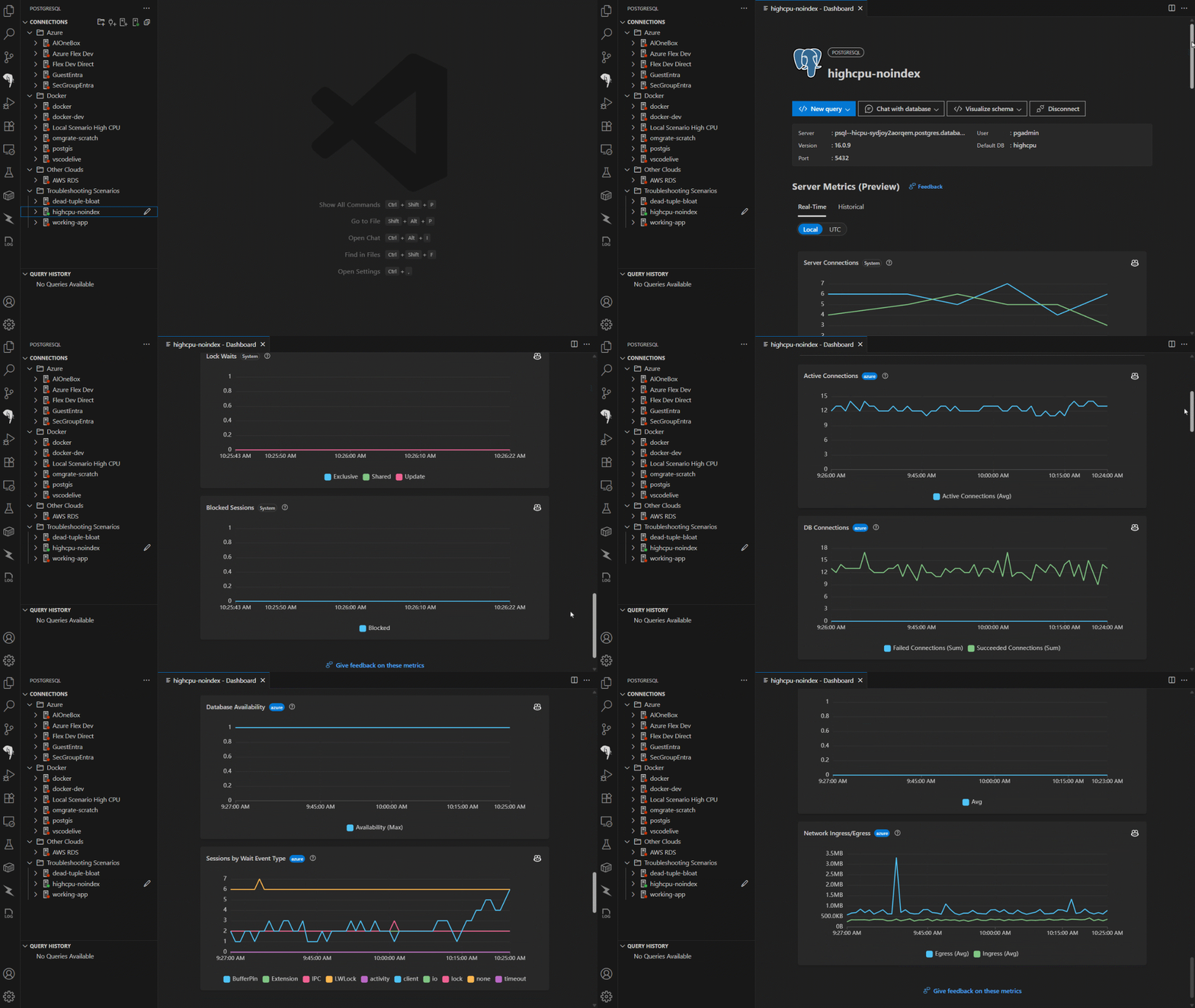
Server Dashboard
Get insights into your PostgreSQL server performance with the Server Dashboard.
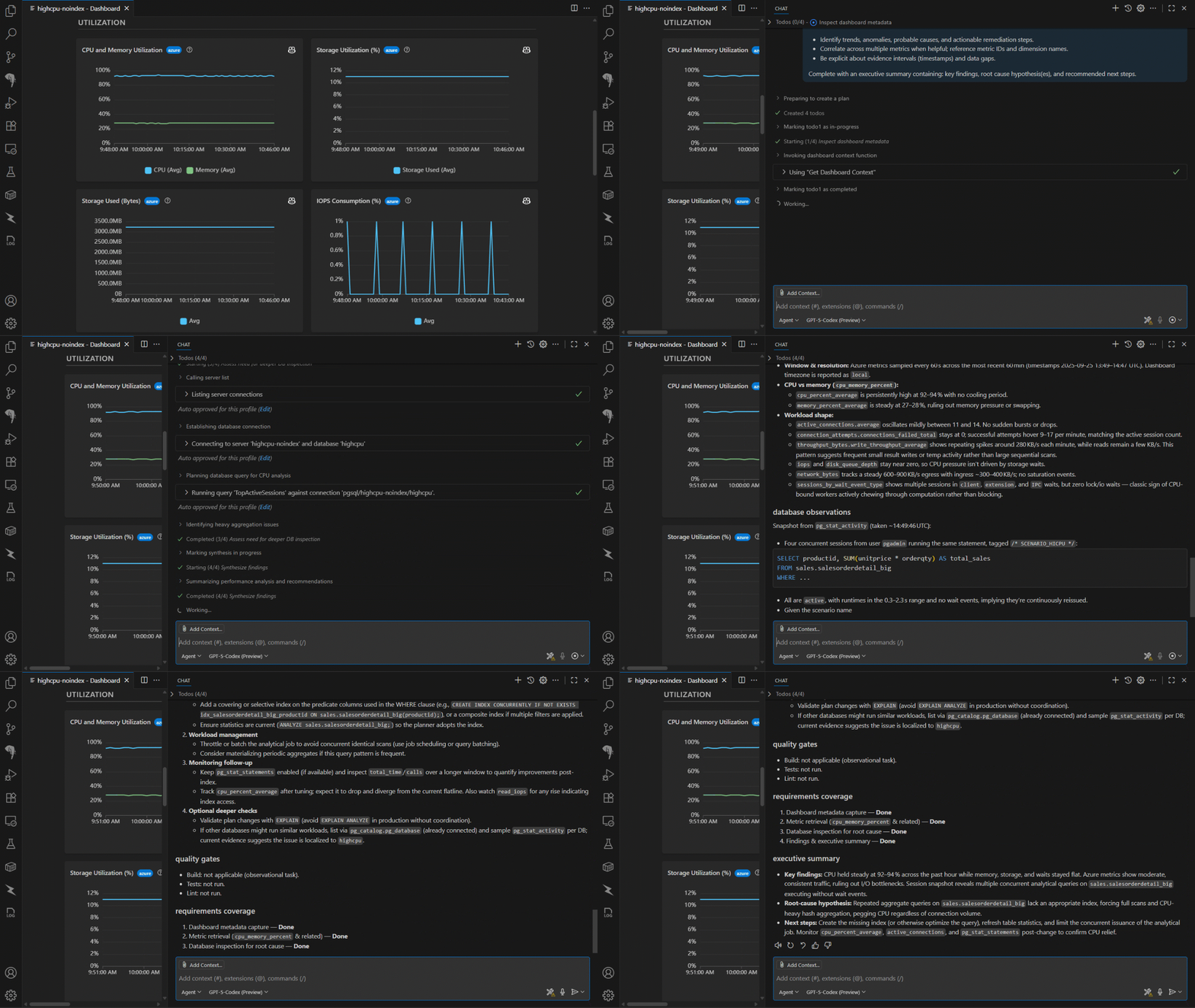
Metrics Intelligence with GitHub Copilot
Get intelligent insights and help with performance and troubleshooting your PostgreSQL database with integration into Copilot.
Create an Azure Database for PostgreSQL
Create a new Azure Database for PostgreSQL server directly from VS Code with just a few clicks.
Manage Azure Database for PostgreSQL servers
Manage your Azure Database for PostgreSQL servers, including starting, stopping, firewall rules, server parameters, and more.
Create a docker PostgreSQL
Create a PostgreSQL database in a Docker container easily with a few clicks.
Query
Run queries in a connected, intellisense-enabled VS Code editor. Results are displayed in a grid view, and you can easily export the results to CSV, JSON, or Excel.
Run psql
Quickly connect psql to any of your databases, including Azure Database for PostgreSQL with Entra authentication.
Oracle to Azure Database for PostgreSQL Schema and Application Conversion (Preview)
The PostgreSQL extension now includes an intelligent schema conversion feature that helps you migrate Oracle database schemas to Azure Database for PostgreSQL. This AI-powered tool automatically converts Oracle schema objects—including tables, views, stored procedures, functions, and triggers—into PostgreSQL-compatible equivalents. The conversion process uses Azure OpenAI to understand complex Oracle constructs and transform them following PostgreSQL best practices, while validating all converted objects in a scratch database environment to ensure compatibility before deployment. When automatic conversion isn't possible for complex Oracle-specific features, the tool flags these items as Review Tasks that you can resolve with assistance from GitHub Copilot Agents.
The Application Conversion feature complements schema migration by automatically transforming your Oracle client application code to work with Azure Database for PostgreSQL. Simply import your source application code into the migration workspace and start the automated conversion process, which generates a comprehensive migration report detailing all required changes. The tool provides built-in diff tools to review and compare converted files side-by-side, making it easy to understand and validate the transformations. While you can perform application conversion independently, completing a schema migration first is strongly recommended—this enables the application conversion process to leverage schema context for more accurate and higher-quality code transformation results, ensuring your Oracle-dependent application logic, queries, and data access patterns are properly adapted for PostgreSQL.
Usage
Get started with the PostgreSQL extension by installing it from the Visual Studio Code Extension Market.
Feedback
For details on how to receive support for this extension, please see the
SUPPORT.md document.
When reporting issues, it may be helpful to include debug logs. You can view
extension logs for the current session by:
- Opening the Command Palette (Ctrl+Shift+P or Cmd+Shift+P on macOS).
- Typing
PGSQL: Show Extension Logsand selecting the option. - The logs will be displayed in the Output panel. You can copy and paste the logs from there.
The Tools Service also outputs logs to disk, which can be accessed by running
this command in the Command Palette:
PGSQL: Show Tools Service Logs.
In rarer cases, the logs may be found in the VS Code logging directory, per
session. To open the session log folder, run this command in the Command
Palette:
Developer: Open Logs Folder.
Look for log files whose name contains the terms:
Microsoft PostgreSQL Tools ServiceMicrosoft PostgreSQL
All of these logs could include host names, user names and other data that may be
sensitive. Please review their contents before sharing these logs with others, or
attaching them to an issue.
Telemetry
This extension collects telemetry data, which is used to help understand how to
improve the product. For example, this usage data helps to debug issues, such as
slow start-up times, and to prioritize new features. You can disable telemetry
as described in the VS Code disable telemetry reporting documentation.
Please see PRIVACY for more information about data collection and use.
Security reporting
Please see SECURITY.md for information on how to report security vulnerabilities.
Code of Conduct
Please see CODE_OF_CONDUCT.md for information on our code of conduct.
Contributing
This project welcomes contributions and suggestions. Most contributions require you to agree to a
Contributor License Agreement (CLA) declaring that you have the right to, and actually do, grant us
the rights to use your contribution. For details, visit https://cla.opensource.microsoft.com.
When you submit a pull request, a CLA bot will automatically determine whether you need to provide
a CLA and decorate the PR appropriately (e.g., status check, comment). Simply follow the instructions
provided by the bot. You will only need to do this once across all repos using our CLA.
This project has adopted the Microsoft Open Source Code of Conduct.
For more information see the Code of Conduct FAQ or
contact [email protected] with any additional questions or comments.
Trademarks
This project may contain trademarks or logos for projects, products, or services. Authorized use of Microsoft
trademarks or logos is subject to and must follow
Microsoft's Trademark & Brand Guidelines.
Use of Microsoft trademarks or logos in modified versions of this project must not cause confusion or imply Microsoft sponsorship.
Any use of third-party trademarks or logos are subject to those third-party's policies.
Third-party licenses
This project may contain third-party libraries. The licenses for these libraries
are located in Third-party notices (extension) and Third-party notices (tools).





