 Base44 Superagents-AI agent that does it all
 Mini tools
 TheLibrarian.io
 Supernormal App
 Saidar
 Runable
 ComputerX
 Collate
 AiAssistWorks - GPT Gemini Claude AI for Sheets Docs Slides
 ConsoleX AI
 Skymel: Create Your Own Personal Agents
 MiroAI
 Ask Steve
 Alfred by Simbli.ai
 Affint
 Kolva
Kolva
 Sup AI
 BrowseWiz
 Support Flow
 Octofy
 Criticly
 Mentor: Get things done




Overview
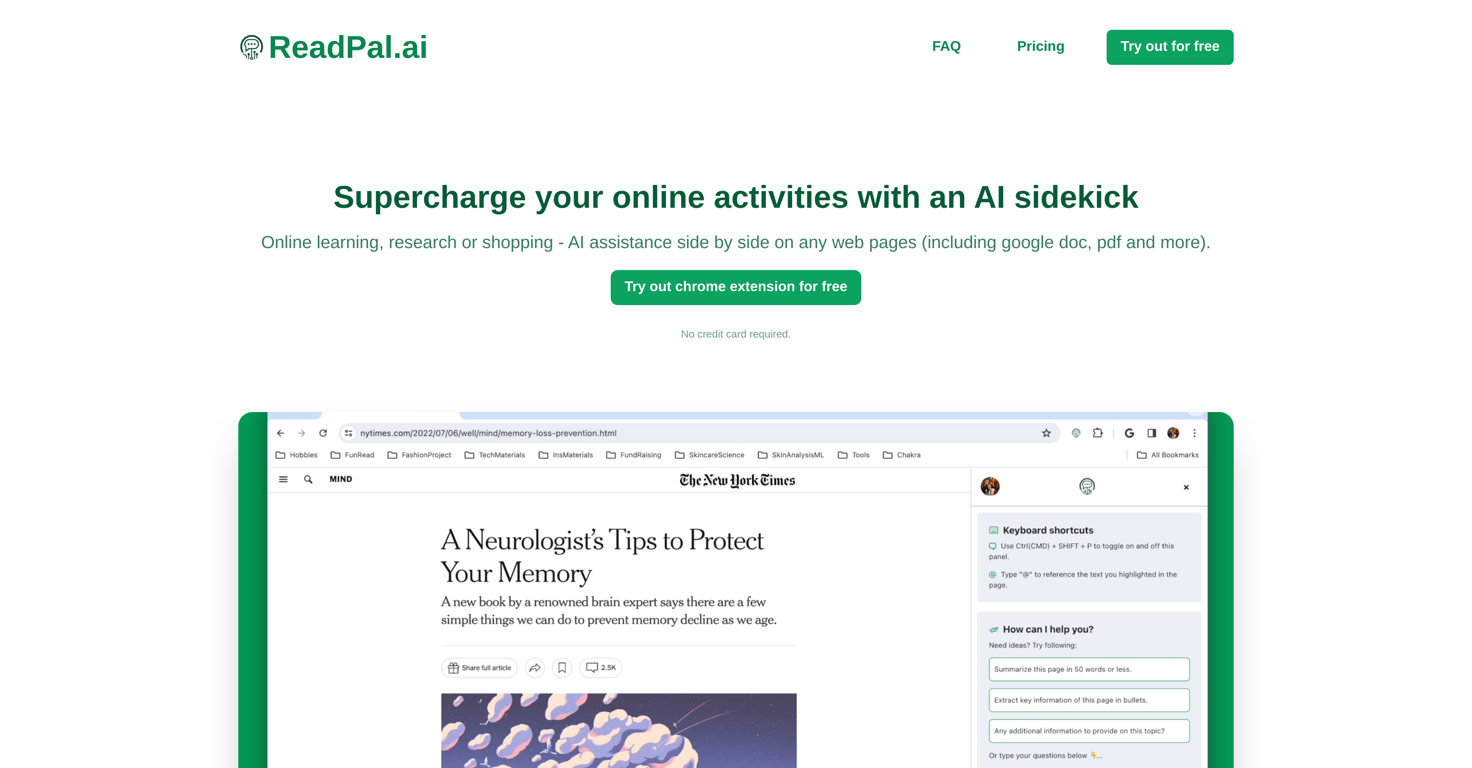
ReadPal.ai is an AI assistant designed to enhance an individual's online activities, including online learning, shopping, and research. As a chrome extension, it serves as an adaptive companion that integrates into a user's workflow, without causing any disruption.
It provides smart assistance by offering instant explanations, summaries, recommendations, and deeper insights about the content viewed by the user. It enables a streamlined interaction by offering keyboard shortcuts, context menus, and one-click prompts, making AI assistance both accessible and unobtrusive.
An important feature of ReadPal.ai is its adaptability; while it currently uses a specific AI model for processing information, it is not restricted to one, with the possibility of using different models for different tasks and potentially training new ones in the future.
This tool prioritizes user privacy and does not store any user data beyond sign-in information and usage statisticswith all queries to third-party AI model providers anonymized and chat history stored locally on the user's browser.
Although currently only available for Chrome, there is active exploration to widen its compatibility with other platforms.
Releases
Top alternatives
-
Duck Typer🙏 256 karmaFeb 12, 2025@TheLibrarian.ioGreat tool! Was very helpful in content production
-
 Open
Open -
Works well and connects with my apps easily. I’m considering using it for daily reports and posts
-
Used it for PPT generation and performed extremely well, especially the numbers and data part.
-
-
I’ve been using Collate to go through technical PDFs, and it’s been surprisingly handy. Summarizing docs and being able to ask questions directly saves me time, especially when I’m skimming through research or API references. No sign-ups, works offline, and everything stays on my device — which I appreciate.






Related topics


 0
0





