 Base44 Superagents-AI agent that does it all
 Mini tools
Flowova AI
 Turn text, images & docs into professional flowcharts in seconds




Go to 🚀 Productivity
📚
Knowledge
(231)
🔍
Research
(186)
📧
Email
(141)
🤖
Task automation
(88)
💼
Personal assistant
(86)
🔎
Search
(83)
📋
Task management
(79)
📝
Notes
(46)
💻
Operating systems
(45)
🌐
Web browsing
(40)
🎯
Goals
(30)
🔎
Problem solving
(24)
⌛
Time management
(20)
🗄️
Workspace organization
(9)
📈
Productivity advice
(9)
📝
Form filling
(7)
 TheLibrarian.io
 Supernormal App
 Saidar
 Runable
 ComputerX
 Collate
 AiAssistWorks - GPT Gemini Claude AI for Sheets Docs Slides
 ConsoleX AI
 Skymel: Create Your Own Personal Agents
 MiroAI
 Ask Steve
 Alfred by Simbli.ai
 Affint
 Kolva
Kolva
 Sup AI
 BrowseWiz
 Support Flow
 Octofy
 Criticly
 Mentor: Get things done
TheLibrarian.io
608,653
Supernormal App
159,560
Saidar
126,785
Runable
119,930
ComputerX
119,338
Collate
111,874
AiAssistWorks - GPT Gemini Claude AI for Sheets Docs Slides
106,744
ConsoleX AI
67,164
Skymel: Create Your Own Personal Agents
55,975
MiroAI
55,987
Ask Steve
51,328
Alfred by Simbli.ai
42,254
Affint
38,195
Kolva
35,589
Sup AI
35,395
BrowseWiz
34,420
Support Flow
32,626
Octofy
30,879
Criticly
27,179
Mentor: Get things done
25,800
Go to 📚 Knowledge
📰
News
(124)
🗺️
Knowledge maps
(63)
📚
Knowledge bases
(17)
 Constella
 Cerebro
 Liminary
 Keymate.AI
 everfind | AI workspace
 MyMemo
 Keepi
Keepi
 ArcaNotes
 Cortex | BodhiGPT
 Aethera
 Quench.ai
 Guru
Guru
 curioAI
 Ask by Slite
 Perfect Wiki
 Grokipedia
 IKI AI
 Ariglad
 Tettra
 Paperbook
Constella
39,210
Cerebro
29,173
Liminary
19,082
Keymate.AI
10,337
everfind | AI workspace
3,463
MyMemo
3,424
Keepi
2,818
ArcaNotes
2,761
Cortex | BodhiGPT
2,120
Aethera
1,772
Quench.ai
1,700
Guru
1,685
curioAI
1,547
Ask by Slite
1,018
Perfect Wiki
991
Grokipedia
982
IKI AI
947
Ariglad
758
Tettra
611
Paperbook
587


Go to 📊 Diagrams
🔄
Flowcharts
(6)
📊
Sketch to diagram
(2)
 DiagramGPT by Eraser
 AI Diagram Maker
 Diagramming
 Dreamspace.art
 Tenorshare AI Diagrimo
 Mermaid Chart
 DGM
DGM
 AI Diagram Generator
 EdrawMax
 Mermaid Viewer
 Creately VIZ
 Clipbard
 ConceptViz
 Draft1
 DG Diagram-Generator
 Lucidchart
 Free Image Diagram Generator
 Diagram Generator
 T-Driven DIAGRAM
 Data Flow Diagrams Generator
DiagramGPT by Eraser
40,810
AI Diagram Maker
32,152
Diagramming
21,782
Dreamspace.art
14,682
Tenorshare AI Diagrimo
7,808
Mermaid Chart
6,316
DGM
3,218
AI Diagram Generator
2,471
EdrawMax
1,825
Mermaid Viewer
856
Creately VIZ
745
Clipbard
712
ConceptViz
679
Draft1
657
DG Diagram-Generator
641
Lucidchart
60
Free Image Diagram Generator
41
Diagram Generator
38
T-Driven DIAGRAM
35
Data Flow Diagrams Generator
23
Inputs:
Outputs:
Turn text, images & docs into professional flowcharts in seconds
Overview
Featured alternatives
MiroAI
MiroAI
55,987
Overview
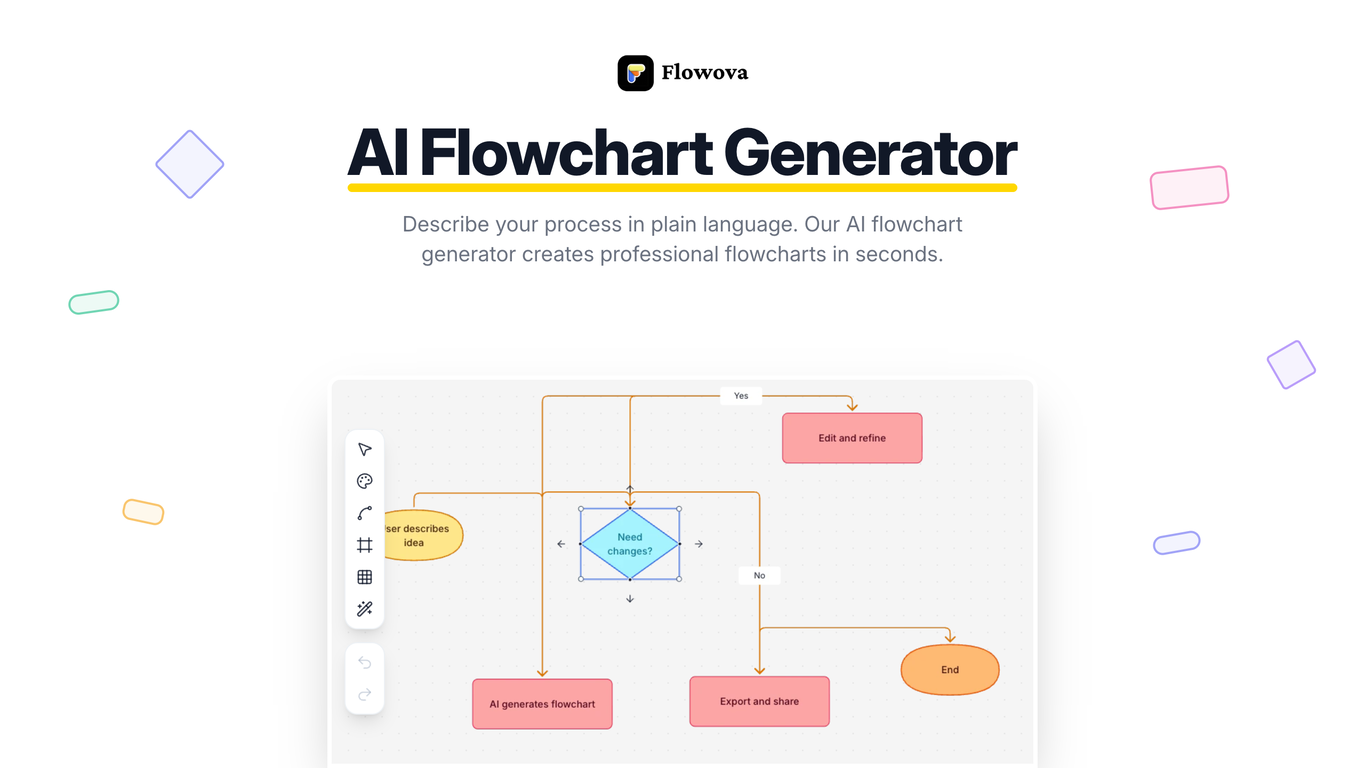
Stop dragging boxes. Start describing.Flowova turns your words into professional flowcharts — instantly. Just type what you need in plain language, and watch your flowchart appear in real-time. No design skills. No learning curve. No wasted time.
Throw anything at it — text descriptions, screenshots, PDFs, Word docs, PowerPoints, even messy hand-drawn diagrams. Flowova understands them all and generates clean, structured flowcharts with smart shapes and logical connections.
⚡ Instant AI Generation — Real-time preview as your flowchart builds itself
📁 Any Input Works — Text, images, PDF, Word, PPT, Markdown, JSON, CSV, Excel
🎨 40+ Themes — Presentation-ready in one click, from vibrant to monochrome
📤 Flexible Export — PNG for slides, SVG for scaling, Mermaid code for Notion & GitHub
☁️ Always Synced — Cloud save, access anywhere, never lose your work
40+ free templates for business, tech, HR, marketing, healthcare, and more.
Built for developers, product managers, business analysts, UX designers, and anyone who thinks in workflows.
Describe it. Done.
Show more
Releases
Get notified when a new version of Flowova AI is released
Notify me
December 13, 2025

jmcraft
Initial release of Flowova AI.
Author

Follow
Pricing
Pricing model
Freemium
Paid options from
$5/month
Billing frequency
Monthly

Other tools by this author
-
 Open
jmcraft🛠️ 2 tools 🙏 9 karmaMar 2, 2026@VocovaI built Vocova to solve a simple problem — people consume content across languages and platforms every day, but turning that content into accurate, readable text is still painfully fragmented. You need one tool to download, another to transcribe, another to translate. It should be one step. We build Vocova the way you'd build a piece of art — every detail is intentional. How natural the speaker labels read, how precisely timestamps align with every word, how a bilingual export looks like a polished document rather than a raw data dump. We don't ship anything that we wouldn't be proud to put our name on. Vocova supports 100+ languages, imports from 1,000+ platforms, and translates into 145+ languages. Try it and let me know what you think — your feedback directly shapes what we build next.
Open
jmcraft🛠️ 2 tools 🙏 9 karmaMar 2, 2026@VocovaI built Vocova to solve a simple problem — people consume content across languages and platforms every day, but turning that content into accurate, readable text is still painfully fragmented. You need one tool to download, another to transcribe, another to translate. It should be one step. We build Vocova the way you'd build a piece of art — every detail is intentional. How natural the speaker labels read, how precisely timestamps align with every word, how a bilingual export looks like a polished document rather than a raw data dump. We don't ship anything that we wouldn't be proud to put our name on. Vocova supports 100+ languages, imports from 1,000+ platforms, and translates into 145+ languages. Try it and let me know what you think — your feedback directly shapes what we build next.
Top alternatives
-
 Create stunning hand-drawn flowcharts from text instantly.OpenI use AI Flowchart Generator to create flowcharts for my blog posts. It’s incredibly easy to use and saves me so much time. Now, I can turn my text to flowchart and make my posts more interesting and helpful for readers!




 0
0





