How can I replace objects in an image using Editaimg?
To replace objects in an image using Editaimg, first, upload the image you want to edit. Then, use the prompt box to direct the AI to replace the specific object. The sophisticated AI capabilities of Editaimg allow for seamless object replacement, ensuring congruity with the overall image.
Can I use Editaimg for creating product shots for e-commerce?
Yes, Editaimg can be used for creating product shots for e-commerce. It facilitates altering details in images, for example, replacing a coffee cup with a teacup, and is capable of creating realistic set-ups for products contributing to convincing and professional-looking product shots.
How does Editaimg ensure a non-destructive editing process?
Editaimg ensures a non-destructive editing process by allowing changes to be made without permanently altering the original image. Users can make edits, view them instantly in previews, decide to keep or discard them – all the while maintaining the integrity of the original image's quality and resolution.
What does instant previews feature in Editaimg mean?
The instant previews feature in Editaimg provides users with immediate visual feedback of their edits. After applying AI-powered edits, users can review the effects in a clean grid format before exporting. This gives them an opportunity to make further adjustments or corrections if needed.
How can I use Editaimg if I'm not a professional?
Despite being a professional-level image editing tool, Editaimg has an intuitive workflow making it easy for non-professionals to use. Users can edit images in advanced ways and achieve high-quality results without requiring professional skills. Assistance from AI coupled with user-friendly interfaces makes the process simple and uncomplicated.
What are the key features of Editaimg for professional-level results?
Key features of Editaimg for professional-level results include: AI-powered editing, non-destructive editing, background removal, face retouching, image upscaling, object addition/removal, image text editing, watermark removal, snowfall effect, one-click export, color grading, artistic style transformation, lighting adjustments, and realistic effects. All these features are designed to provide seamless user experience and high-quality image edits.
How does one-click export work in Editaimg?
The one-click export feature in Editaimg allows users to download their edited images with a single click. Once editing has been done and users are satisfied with their changes seen in the instant preview, they can utilize this feature to expedite the exporting process.
How to apply artistic styles or color grading using Editaimg?
To apply artistic styles or color grading using Editaimg, upload the image to the tool. Use the AI capabilities to apply style transformations which include options of applying artistic styles, color grading, and lighting adjustments to the image which can completely transform the look of any image.
How does the 'AI Snow' feature function in Editaimg?
The 'AI Snow' feature in Editaimg enables the addition of a realistic snowfall effect to any image. It takes into account lighting and intensity adjustments, identifying optimal positioning for a believable visual enhancement. The specifics of this feature's functioning aren't fully stated, but it likely utilizes AI algorithms to facilitate precise overlay of the snowfall effect.
What are the steps to upload an image and apply edits in Editaimg?
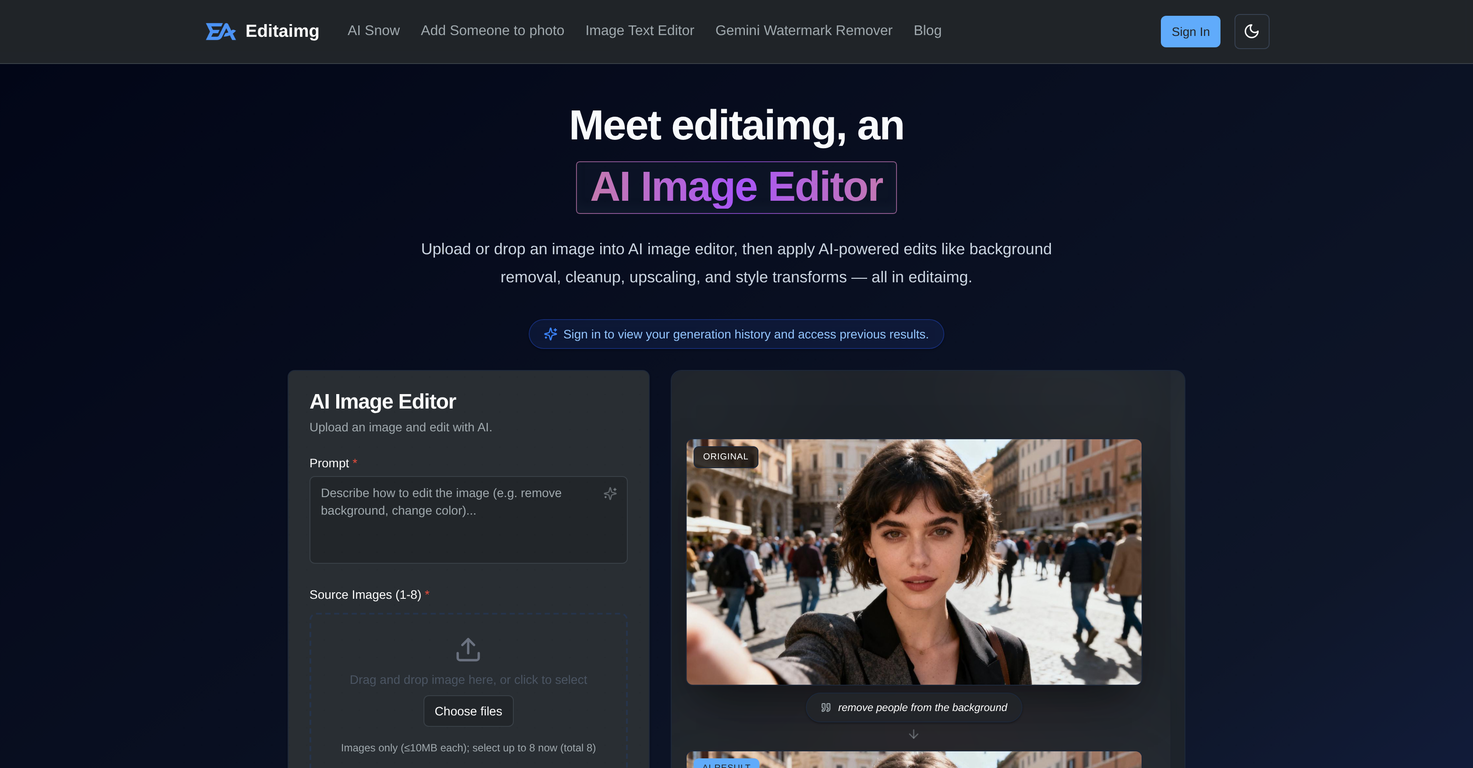
To upload an image and apply edits in Editaimg, firstly, drag and drop your image into the AI image editor or select your image through browsing. Then type in your desired alterations in the prompt box that include options like background removal, cleanup, upscaling, and style transformations. Finally, hit 'Generate' to see the transformed image.
Can I remove or add objects from photos using Editaimg?
Yes, you can add or remove objects from photos using Editaimg. The tool uses AI to seamlessly make these edits while ensuring the original quality and aesthetic of the image is preserved.
What are the lighting adjustment capabilities of Editaimg?
Editaimg offers lighting adjustments capabilities as part of its AI-powered editing tools. It uses AI to optimize the contrast and brightness of the image, improving the overall visual quality and artistic look. However, more specific functionalities or controls regarding light adjustments aren't described in detail.
How does the generation history feature of Editaimg work?
The generation history feature of Editaimg allows users to view their past interactions with the image editor. By signing into their account, users can access previous results, reviewing past edits, and possibly reusing or learning from them. Exact functioning or visual representation of the generation history isn't explicitly described.
What are the supported formats for exporting in Editaimg?
Editaimg supports exporting images in popular formats. Although the type of formats aren't specifically mentioned, it generally includes formats widely accepted and used for image files such as JPEG, PNG, and possibly others.
What is Editaimg?
Editaimg is an AI-powered image editing tool specifically designed to provide advanced editing features such as background removal, retouching of faces, editing of text on images, and upscaling of image resolutions. It also offers unique capabilities like style transformations, color grading, and lighting adjustments. Editaimg is tailored for a range of users, including professionals looking for advanced editing tools and non-professionals seeking to achieve professional-level results.
How does Editaimg use artificial intelligence for image editing?
Editaimg uses AI algorithms to automate and enhance various aspects of image editing. These include removing backgrounds, editing the text on images, upscaling resolution, and retouching faces. The AI identifies and differentiates between the foreground and the background, remove unwanted objects or people with precision. It can also recognize and match fonts and colors, and upscale low-resolution images without loss of quality.
How can I use Editaimg to remove backgrounds from images?
Editaimg's AI-powered technology recognizes and differentiates between the foreground and background of an image. After you upload an image, the AI isolates the background and removes it, leaving only the primary object or individual streaks in the foreground.
How can Editaimg help in retouching faces in photos?
Editaimg uses AI algorithms to analyse and discern the different elements of a face in a photo. Users can retouch faces by adjusting specific characteristics or applying overall edits, such as smoothing, brightening, and contrast adjustments. The AI ensures that these enhancements look realistic and natural.
Can I edit text within images using Editaimg?
Yes, with Editaimg's 'Image Text Editor', users can add, edit, or remove text from images. The AI matches the fonts, colors, and texture of the existing text within the image to provide seemless integrations.
Which photo details can I adjust using Editaimg?
Using Editaimg, users can adjust a wide range of photo details such as removing objects, upscaling image resolution, altering text, and modifying colors and texture. You can use its style transformations to apply artistic styles, color grading, and lighting adjustments.
Can Editaimg be used to create realistic product shots for e-commerce?
Yes, Editaimg can be used for creating realistic product shots for e-commerce. One can take a simple white-background image, like a soap dispenser, and place it in a realistic setting, such as on a kitchen sink. Editaimg provides a professional look to product photos in an instant.
How does 'Gemini Watermark Remover' work in Editaimg?
'Gemini Watermark Remover' in Editaimg is a feature that removes the visible Gemini watermark on any image. It works by analyzing the image and then utilizing AI algorithms to seamlessly remove the watermark within the browser for clean, privacy-focused exports.
Can I add snowfall effect to images using Editaimg?
Yes, with Editaimg's 'AI Snow' feature, users can add a realistic snowfall effect to any image. The AI ensures the added snow effect blends naturally with the image, even allowing manipulation of its intensity and lighting.
How can I use 'Image Text Editor' in Editaimg?
'Image Text Editor' in Editaimg is a feature where users can add, edit, or remove text from images. To use it, you need to select the desired image, then use the text editor to add new text or edit the existing one. The AI in Editaimg will match the new or edited text font, color, and texture with the original image.
What are the style transformation features offered by Editaimg?
Style transformation features in Editaimg make use of the AI's ability to apply artistic styles, color grading, and lighting adjustments. These transformations can significantly modify the overall feel and aesthetic of the image, providing a transformation as per the user's artistic vision.
Can I get instant previews of edited photos using Editaimg?
Yes, Editaimg offers an instant preview feature. Upon applying the AI-powered edits, users can instantly view the results in a clean grid format. This feature helps users to monitor the editing process and ensure the final result is as desired.
What are the export options available in Editaimg?
In Editaimg, images can be exported in popular formats. The tool has been developed with a one-click export feature, providing users with a streamlined and efficient way to download their edited images.
How user-friendly is the workflow within Editaimg?
Editaimg boasts a highly user-friendly workflow. The editing process involves importing of images, description of editing ideas, customized settings, and generation of the final edit. The intuitive navigation and user interface make it easy for users of all levels of expertise to function.
Does Editaimg support a non-destructive editing process?
Yes, Editaimg supports a non-destructive editing process. This means that the original data of the image is preserved throughout the editing process. This allows users to revert back to the original image at any point without loss of quality or data
Can Editaimg help me adjust the lighting and color grading of my images?
Yes, Editaimg allows users to adjust the lighting and color grading of images using AI capabilities. The 'Style Transforms' feature can be used to apply artistic styles, color grading, and lighting adjustments that transform the aesthetic of any image.
How can Editaimg enhance the quality of low-resolution images?
Editaimg can certainly enhance the quality of low-resolution images. It offers an upscaling feature that uses AI algorithms to increase the resolution of images without loss of quality. This gives users the ability to transform low-quality images into high-res visual content.
How does Editaimg allow object replacement in images?
Editaimg allows for object replacement in images. Users can subtly alter details in their images, including object swaps that match perfectly with the creative vision. One might seamlessly replace a coffee cup with a teacup in a poster or any other object replacement scenario.
Can I use Editaimg for commercial image editing needs?
Yes, Editaimg can definitely cater to commercial image editing needs. With its features like 'Product Shots' creation, users can significantly enhance their e-commerce images. In addition, features such as background removal or text editing can be used to create appropriate visuals for varied marketing and sales requirements.
Can Editaimg maintain image texture while removing and adding elements to it?
Absolutely, Editaimg does maintain the texture of images while adding or removing elements. The AI is designed to match the texture while editing text or adding new elements to the image. Similarly, if an element is removed from an image, the AI is capable of reinventing the removed part's texture and pattern.